
Domain Management: Share Access to Your Cloudflare Account
Introduction
Sharing access to your Cloudflare account allows the WP Sprints team to manage domain settings directly, make necessary configurations, and troubleshoot any issues efficiently. This approach ensures minimal downtime during website setup or maintenance, optimizing your site for both performance and security.
Step-by-Step Instructions
1. Login to your Cloudflare account dash.cloudflare.com/login.
2. On the left panel, click Members and under that module, click Invite.
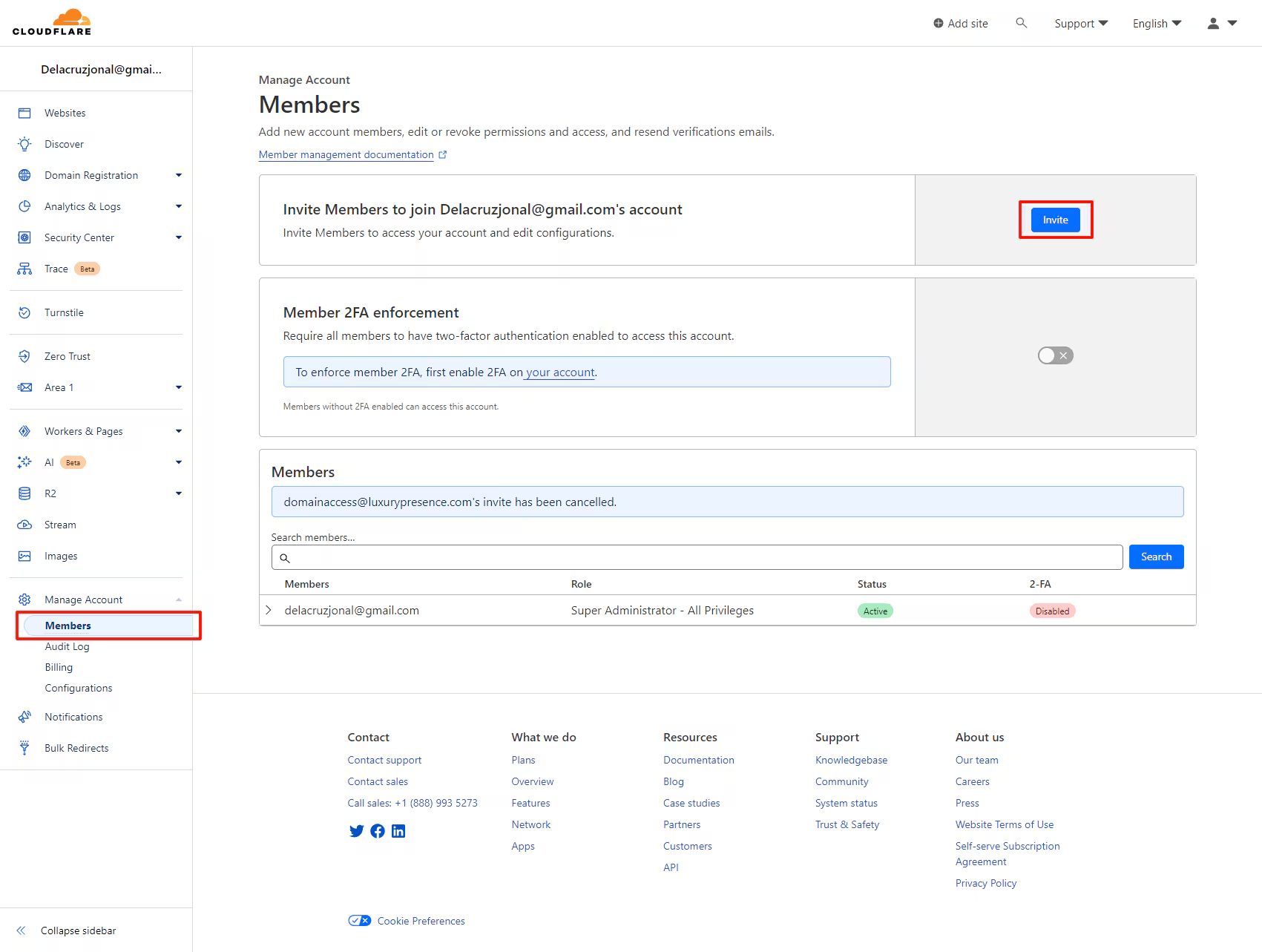
3. On the Invite members field, enter lpaccess@luxurypresence.com, then click Add.
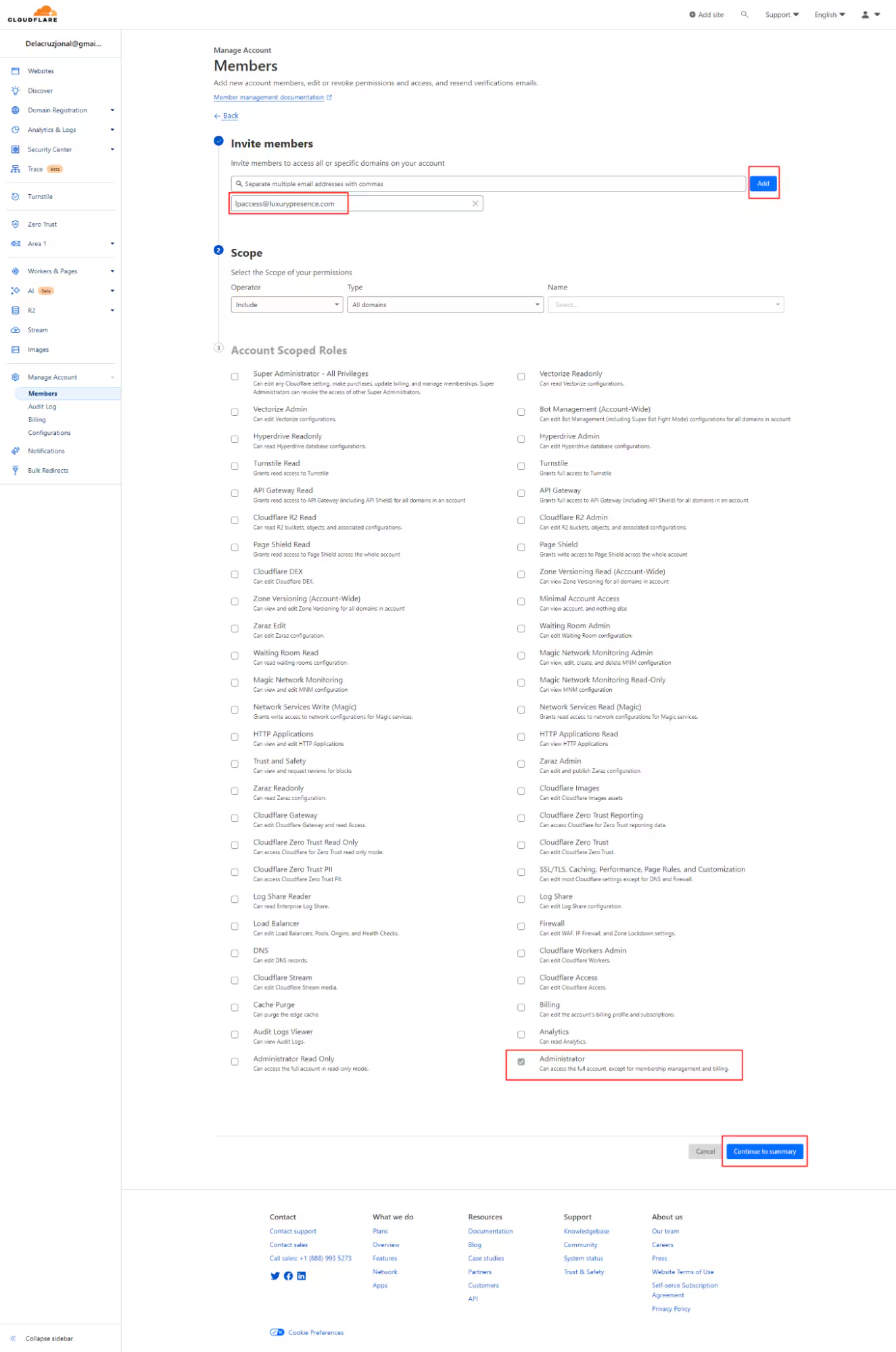
4. You’ll have the option to either delegate access to all domains or choose to delegate access to a specific domain.
To give access to All Domains:
- Under Scope, on the Operator dropdown, select Include → On the Type dropdown, select whether you want to delegate all domains or A specific domain.
- On the Account Scoped Roles, select Administrator and click Continue to Summary to proceed to the next step.
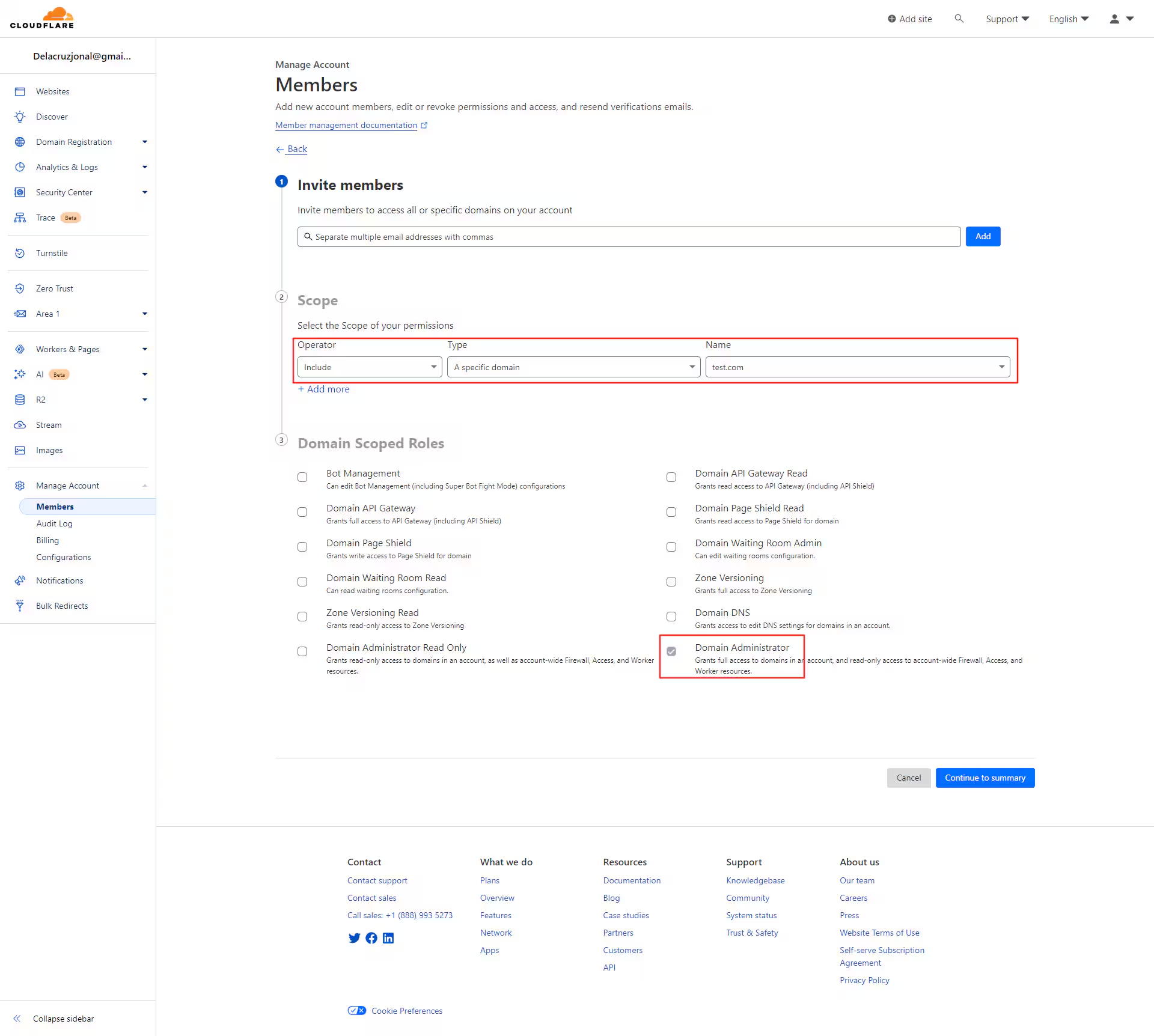
To give access to a Specific Domain:
- Under Scope, on the Operator dropdown, select Include → On the Type dropdown, a specific domain → On the Name dropdown, enter the domain that you want to give access to.
- On the Account Scoped Roles, select Domain Administrator and click Continue to Summary to proceed to the next step.
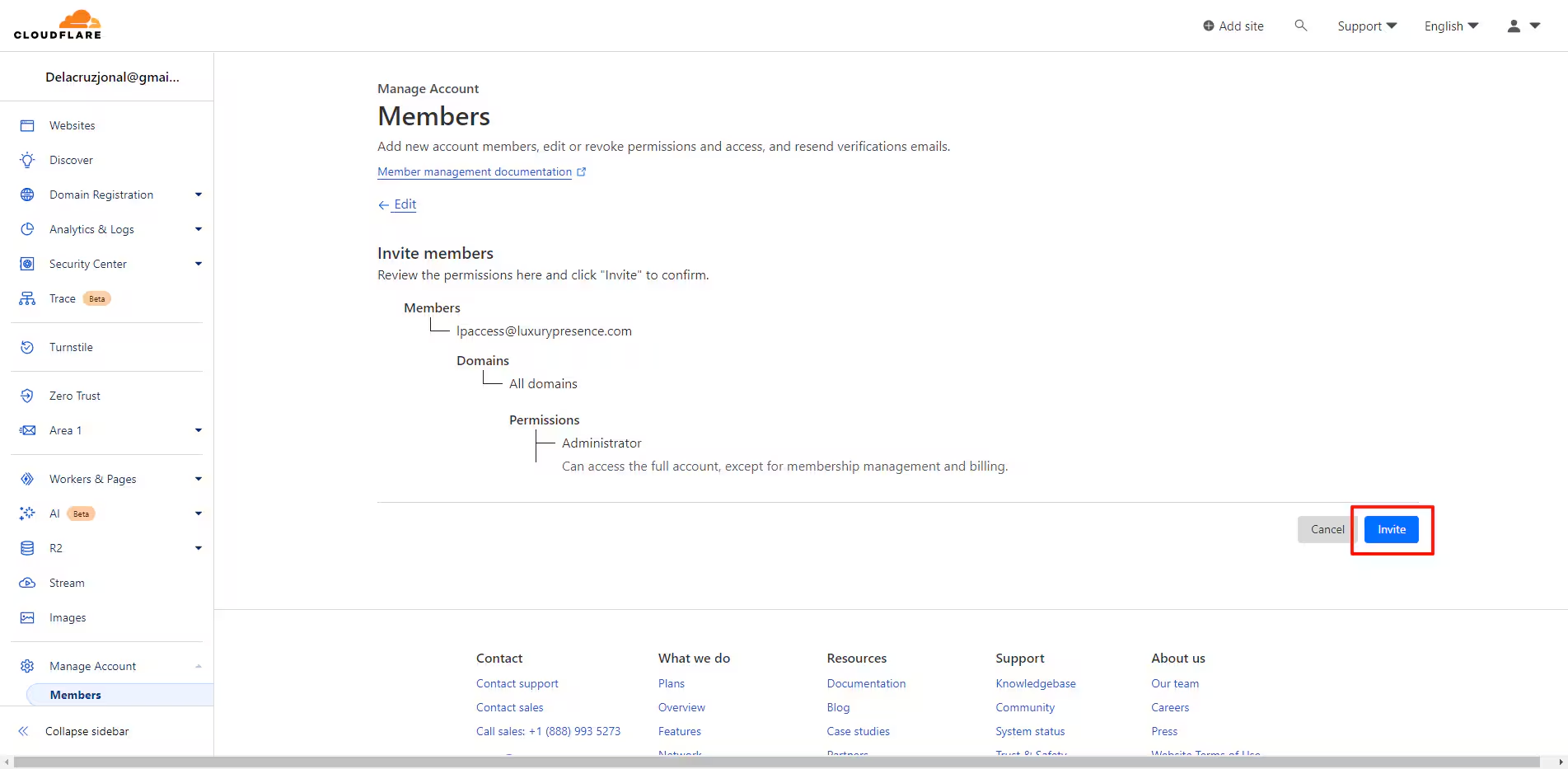
5. Upon reviewing the summary details of the invitation, please click on Invite to proceed.
6. Please let our Support Team know once you’ve delegated access.