
Help Center
Domain Management: Share Access to Your Domains.com Account
Why Share Access?
Sharing access allows the WP Sprints team to directly manage domain settings, implement necessary configurations, and troubleshoot any issues that may arise during the website setup or maintenance phase. This collaborative approach streamlines the process, minimizing downtime and ensuring your website is optimized for performance and security.
How to Share Access to Your Domains.com Account
- Login to: https://www.domain.com/my-account/login
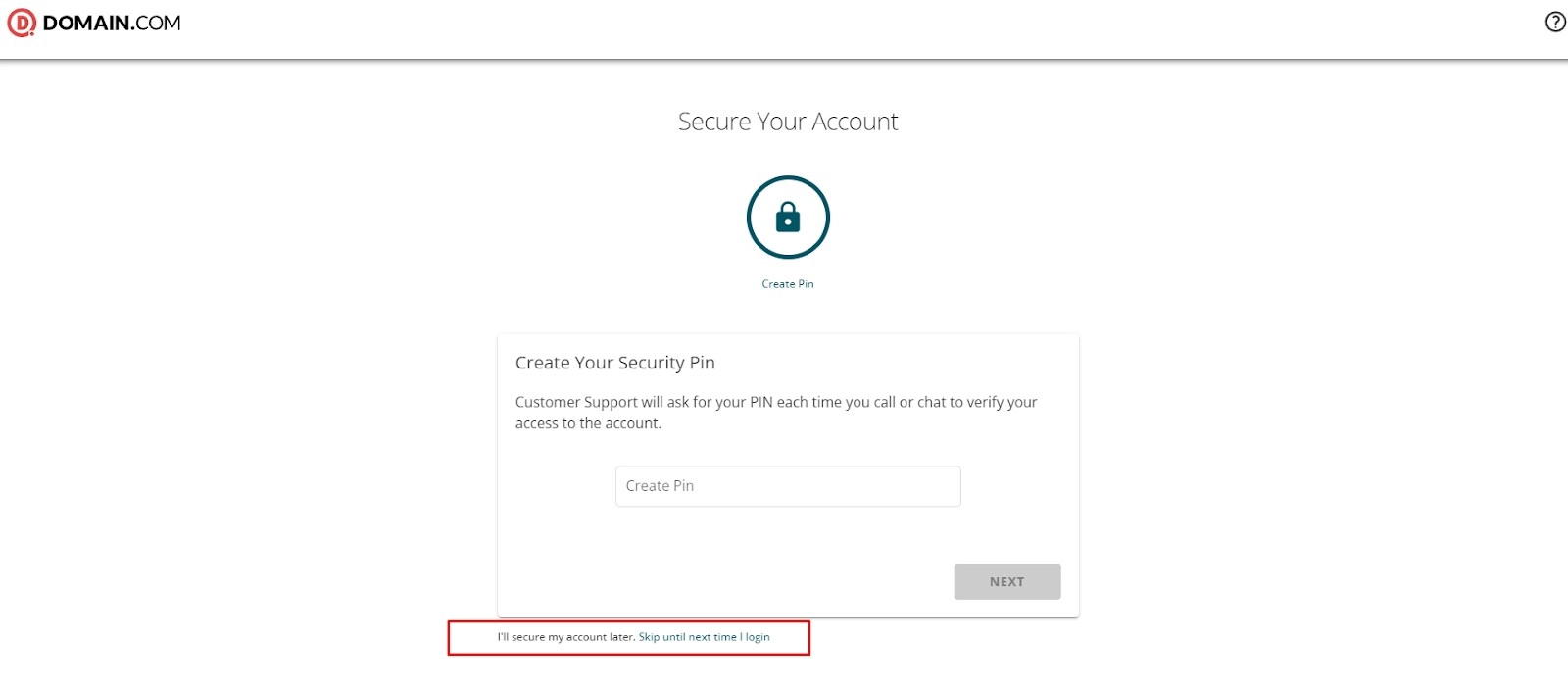
- Once logged in, you may see a page asking you to create a PIN. You can skip this step and proceed inside the dashboard.
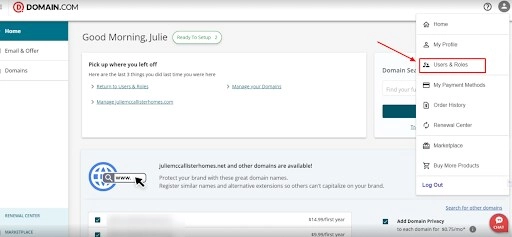
- Inside the dashboard, click the user icon, and find Users & Roles on the drop-down menu.
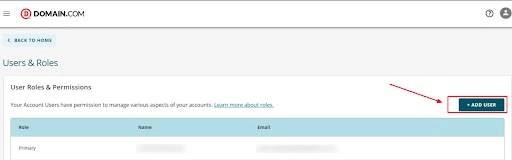
- Then click the Add User button on the right side of the screen.
- A pop-up window will appear.
- In the Name field, type WP Sprints
- In the Email field, enter lpaccess@luxurypresence.com.
- For the Role, select Tech
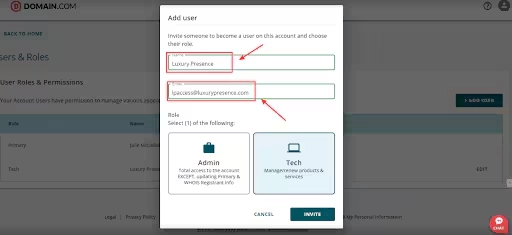
- Select the Invite button, and you’re done!
- Please let our Support Team know once you’ve delegated access.
Important Considerations
- Delegating access will give us access to ALL or SPECIFIC domains in the account depending on your preferences.